mirror of
https://github.com/pi-hole/PADD.git
synced 2026-04-19 08:10:25 +01:00

184 lines
4.9 KiB
Markdown
184 lines
4.9 KiB
Markdown
# PADD
|
||
|
||
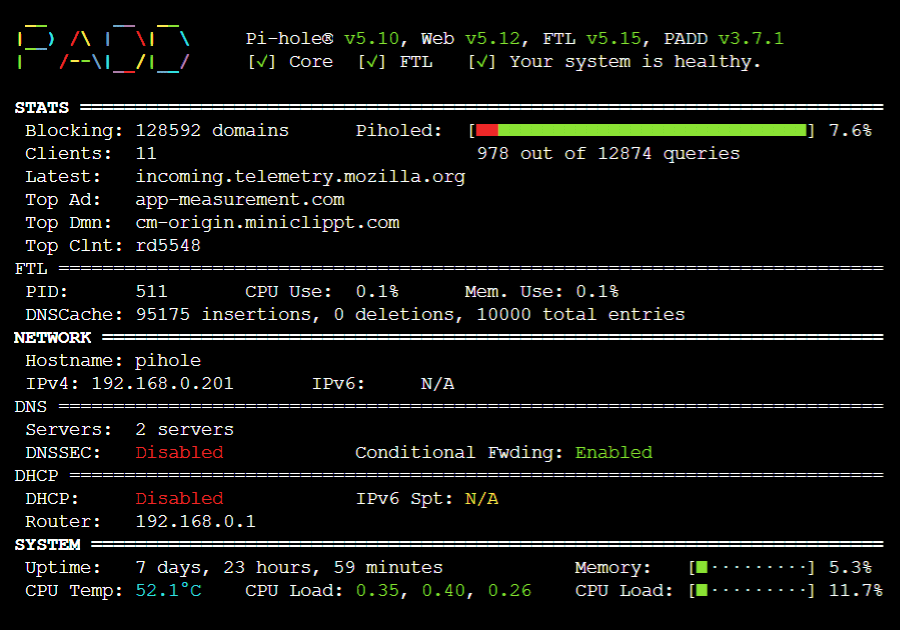
PADD (formerly Chronometer2) is a more expansive version of the original chronometer.sh that was included with [Pi-Hole](https://pi-hole.net). PADD provides in-depth information about your Pi-hole.
|
||
|
||
|
||
|
||
***Note:** PADD has been adopted by the Pi-hole team, thanks to JPMCK for creating this helpful tool!
|
||
|
||
## Setup PADD
|
||
|
||
- Get a copy of PADD by running:
|
||
|
||
```bash
|
||
cd ~
|
||
wget -O padd.sh https://install.padd.sh
|
||
```
|
||
|
||
or
|
||
|
||
```bash
|
||
cd ~
|
||
curl -sSL https://install.padd.sh -o padd.sh
|
||
```
|
||
|
||
- Make PADD executable by running
|
||
|
||
```bash
|
||
sudo chmod +x padd.sh
|
||
```
|
||
### Dependencies
|
||
- curl
|
||
- jq
|
||
- dig
|
||
- tput
|
||
|
||
## Using PADD
|
||
|
||
### PADD on Pi-hole machine
|
||
|
||
- Just run
|
||
|
||
```bash
|
||
./padd.sh
|
||
```
|
||
|
||
### PADD from other machine
|
||
|
||
- With PADD v4.0.0 and Pi-hole v6 it is also possible to run PADD from a machine that is not running Pi-hole
|
||
|
||
```bash
|
||
./padd.sh --server <DOMAIN|IP>
|
||
```
|
||
|
||
### Authentication
|
||
|
||
Pi-hole v6 uses a completely new API with a new authentication mechanism
|
||
|
||
If you run PADD on the same machine as Pi-hole, it's possible to bypass authentication when your local user is member of the `pihole` group (specifically, if you can access `/etc/pihole/cli_pw`).
|
||
For details see [https://github.com/pi-hole/FTL/pull/1999](https://github.com/pi-hole/FTL/pull/1999)
|
||
|
||
If this is not the case, PADD will ask you for your password and (if configured) your two factor authentication token. You can also pass those as arguments
|
||
|
||
- password only
|
||
|
||
```bash
|
||
./padd.sh --secret <password>
|
||
```
|
||
|
||
- with 2FA enabled
|
||
|
||
```bash
|
||
./padd.sh --secret <password> --2fa <2fa>
|
||
```
|
||
|
||
### PADD with Pi-hole in a Docker Container
|
||
|
||
- If you're running Pi-hole in the official Docker Container, `padd.sh` is pre-installed and named `padd`. It can be used with the following command:
|
||
|
||
```bash
|
||
docker exec -it <container_name> padd [padd_options]
|
||
```
|
||
|
||
### PADD on PiTFT screen
|
||
|
||
_Instructions for how to setup PiTFT screen can be found [here](https://learn.adafruit.com/adafruit-pitft-3-dot-5-touch-screen-for-raspberry-pi/easy-install-2)_
|
||
|
||
- Set PADD to auto run on the PiTFT screen by adding the following to the end of `~/.bashrc`:
|
||
|
||
```bash
|
||
# Run PADD
|
||
# If we’re on the PiTFT screen (ssh is xterm)
|
||
if [ "$TERM" == "linux" ] ; then
|
||
while :
|
||
do
|
||
./padd.sh
|
||
sleep 1
|
||
done
|
||
fi
|
||
```
|
||
|
||
One line version
|
||
|
||
```bash
|
||
cd ~ ; echo "if [ \"\$TERM\" == \"linux\" ] ; then\n while :\n do\n ./padd.sh\n sleep 1\n done\nfi" | tee ~/.bashrc -a
|
||
```
|
||
|
||
- Reboot your Pi-Hole by running `sudo reboot`. PADD should now run on PiTFT Screen when your Pi-Hole has completed booting.
|
||
|
||
#### (Optional) Put the PiTFT Display to Sleep at Night
|
||
|
||
_If you don't want your PiTFT on all night when you are asleep, you can put it to sleep! (Note: **these instructions only apply to a PiTFT**.)_
|
||
|
||
- To do so, edit cron as root (`sudo crontab -e`) and add the following:
|
||
|
||
```bash
|
||
# PiTFT+ SLEEPY TIME
|
||
# Turn off the PiTFT+ at midnight
|
||
00 00 * * * sh -c 'echo "0" > /sys/class/backlight/soc\:backlight/brightness'
|
||
# Turn on the PiTFT+ at 8:00 am
|
||
00 08 * * * sh -c 'echo "1" > /sys/class/backlight/soc\:backlight/brightness'
|
||
```
|
||
|
||
## Updating PADD
|
||
|
||
- Simply run
|
||
|
||
```bash
|
||
./padd.sh -u
|
||
```
|
||
|
||
- or run the same commands you used to install
|
||
|
||
```bash
|
||
cd ~
|
||
wget -O padd.sh https://install.padd.sh
|
||
```
|
||
|
||
or
|
||
|
||
```bash
|
||
cd ~
|
||
curl -sSL https://install.padd.sh -o padd.sh
|
||
```
|
||
|
||
## Sizes
|
||
|
||
PADD will display on screens that anywhere from 20x10 characters to over 80x26 characters.
|
||
|
||
As your screen gets smaller, you’ll be presented with less information… however, you’ll always get the most important details:
|
||
|
||
- The status of your Pi-hole (is it online, in need of an update?),
|
||
- How many ads have been blocked,
|
||
- Your hostname and IP, and
|
||
- Your CPU’s current load.
|
||
|
||
It will also run in the following modes (shown further below):
|
||
|
||
- Pico: 20x10 characters
|
||
- Nano: 24x12 characters
|
||
- Micro: 30x16 characters
|
||
- Mini: 40x18 characters
|
||
- Tiny: 53x20 characters
|
||
- Slim: 60x21 characters
|
||
- Regular: 60x22 characters (takes up the entire screen on a 3.5" Adafruit PiTFT using the Terminal font at 8x14.)
|
||
- Mega: 80x26 characters
|
||
|
||
### Sizing Your PADD
|
||
|
||
How PADD will display on your screen depends on the size of the screen in _characters_, not _pixels_! PADD doesn’t care if it is running on a 5k Retina display on your $5,000 iMac Pro or on a $5 display you bought on eBay.
|
||
|
||
If you want to change how PADD displays on a small display attached to your Raspberry Pi, use
|
||
|
||
```bash
|
||
sudo dpkg-reconfigure console-setup
|
||
```
|
||
|
||
to configure your font settings to an ideal size for you.
|
||
|
||
If you want to change how PADD displays through a terminal emulator (PuTTY, Terminal.app, iTerm2, etc.), resize your window or play with font sizes in your app of choice.
|
||
|
||
### The Sizes
|
||
|
||

|